

Send a delivery test email
Send a delivery test before launching a phishing campaign to check that Prventi’s email can reach an inbox on your organization’s domain.
Before you start
Section titled “Before you start”- Verify the recipient’s domain.
- Complete the allowlisting steps for your email provider.
- Use an account with permission to manage organization settings and choose a mailbox you or your email administrator can check.
Send the test
Section titled “Send the test”- Open Settings > Domains.
- Find a domain with status Verified, then select Send delivery test in that row.
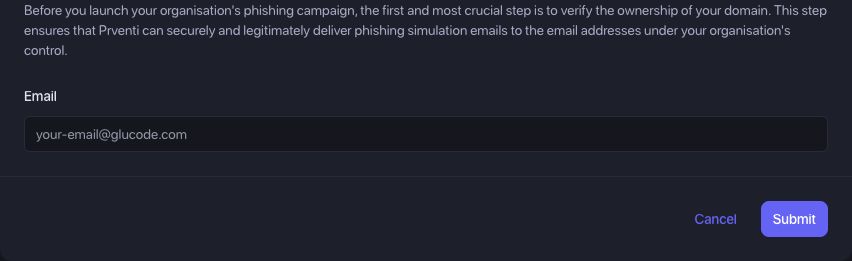
- Enter the recipient’s full Email address. It must be on that exact domain: for a test on
example.com, use an address such asadmin@example.com. - Select Submit once. Prventi queues the email and opens the delivery-test confirmation page.
- Check the recipient’s inbox, spam, junk, and mail quarantine. Allow the message time to arrive before sending another test.
Confirm receipt in Prventi
Section titled “Confirm receipt in Prventi”After the message arrives, return to the confirmation page and select I have received the email. Prventi records the confirmation and returns you to the domain list.
Do not confirm receipt merely because the send request was accepted. A message found in quarantine shows that filtering still needs attention before a broader rollout.
Repeat the test for each verified domain you plan to use. Where different groups use different mail gateways or filtering policies, check representative recipients before launch.
Next: Once delivery works, start your baseline phishing campaign.
Troubleshooting
Section titled “Troubleshooting”Send delivery test is missing
Section titled “Send delivery test is missing”If the domain shows Verify now, complete domain verification first. If the action is unavailable despite a verified domain, ask the organization owner to check your settings permissions.
The form says the email must be on the domain
Section titled “The form says the email must be on the domain”The part after @ must match the selected domain exactly. For example.com, an address on mail.example.com is a different domain. Return to the domain list and choose or verify the correct domain.
The message did not arrive or went to quarantine
Section titled “The message did not arrive or went to quarantine”Check the recipient address, junk folder, quarantine, and mail administrator’s message trace. Revisit the applicable Microsoft 365, Google Workspace, or Mimecast setup. After correcting filtering, send another test and confirm it reaches the inbox.
The email arrived but setup still shows this step as incomplete
Section titled “The email arrived but setup still shows this step as incomplete”Return to the test’s confirmation page and select I have received the email. Receiving the message and recording its receipt in Prventi are separate steps.
I need help tracing delivery
Section titled “I need help tracing delivery”Contact support with the affected domain, approximate send time, error text, and the outcome of your mail trace. Do not include a full employee list or sign-in credentials.