

Verify domain ownership
Verify the domains used by your learners’ work email addresses before sending phishing simulations to them. Domain verification and email allowlisting are separate setup tasks.
Before you start
Section titled “Before you start”- Select the correct organization and use an account with permission to manage its settings.
- Identify each email domain you need to verify, such as
example.com. - Have access to the domain’s DNS settings or an appropriate mailbox on that domain for email verification.
Add or find your domain
Section titled “Add or find your domain”- Open Settings > Domains in your organization.
- Check the list first: domains may already have been added when learners were created or imported.
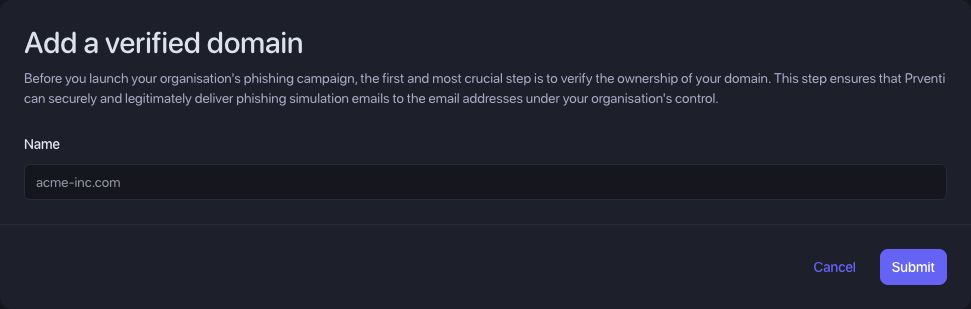
- If the domain is missing, select Add Domain, enter its name without
https://, a path, or a person’s email address, and select Submit. - For an unverified domain, select Verify now to open Domain verification. If it already shows Verified, continue to email allowlisting and delivery testing.
Option 1: Verify with DNS
Section titled “Option 1: Verify with DNS”- Under DNS verification, copy the TXT record hostname and value shown for your domain.
- In your DNS provider’s management console, add a TXT record with those values. The full hostname has the form
_prventi-domain-challenge.example.com. - Check whether your DNS provider appends the domain name automatically. If it does, the host field may need only
_prventi-domain-challenge. - Save the record, return to Prventi, and select Verify DNS record.
- When verification succeeds, return to Settings > Domains and confirm the domain shows Verified.
Use the unique TXT value displayed in your own workspace. The example hostname above is not a verification value. DNS changes can take time to appear; the Prventi screen advises allowing up to 72 hours for propagation.
Option 2: Verify with email
Section titled “Option 2: Verify with email”- Under Email verification, enter the mailbox name before
@. The domain is supplied by Prventi. Use a mailbox you can access; the form suggests a generic address such asadmin,webmaster, orpostmaster. - Select Send verification email.
- Open the email and follow its verification link, or return to Prventi and select Enter verification code to use the code from that email.
- Confirm the domain is shown as Verified in Settings > Domains.
Confirm you are ready for email setup
Section titled “Confirm you are ready for email setup”The domain list should show Verified, and its action should change from Verify now to Send delivery test.
Next: Allowlist Prventi email servers, then send a delivery test. Verification alone does not guarantee inbox delivery.
Troubleshooting
Section titled “Troubleshooting”Prventi cannot find the DNS record
Section titled “Prventi cannot find the DNS record”Check the record type is TXT, the hostname is not duplicated by your DNS provider, and the value exactly matches the one in Prventi. Confirm you edited DNS at the provider that currently hosts the domain’s records, then allow time for propagation and verify again.
The email verification message has not arrived
Section titled “The email verification message has not arrived”Check the mailbox name, spam, and quarantine. Confirm that the mailbox exists and can receive external mail. Use Resend email when available, or use DNS verification if you cannot access a suitable mailbox.
My code or link is expired, invalid, or locked
Section titled “My code or link is expired, invalid, or locked”Request a new verification email and use its latest link or code. Avoid repeatedly guessing codes; verification is limited to five failed attempts.
The domain is verified but messages are still blocked
Section titled “The domain is verified but messages are still blocked”Continue with your provider’s allowlisting guide. Domain ownership, mail filtering, and delivery testing solve different parts of setup.