

Turn company policies into training
Use Policies to maintain approved policy text and request a learning module based on it. Publishing the source policy, preparing its learning module, and assigning the training are separate steps.
Before you start
Section titled “Before you start”- Select the correct organization and use an account with permission to manage policies.
- Custom learning modules must be enabled for the organization. Contact your organization owner or Prventi support if Policies is unavailable.
- Have your policy owner approve the wording before publication. The current editor accepts policy text; copy the relevant text from your approved document into the editor.
Create a policy draft
Section titled “Create a policy draft”- Open Policies in the organization sidebar. The page heading is Custom learning content.
- Select Add policy.
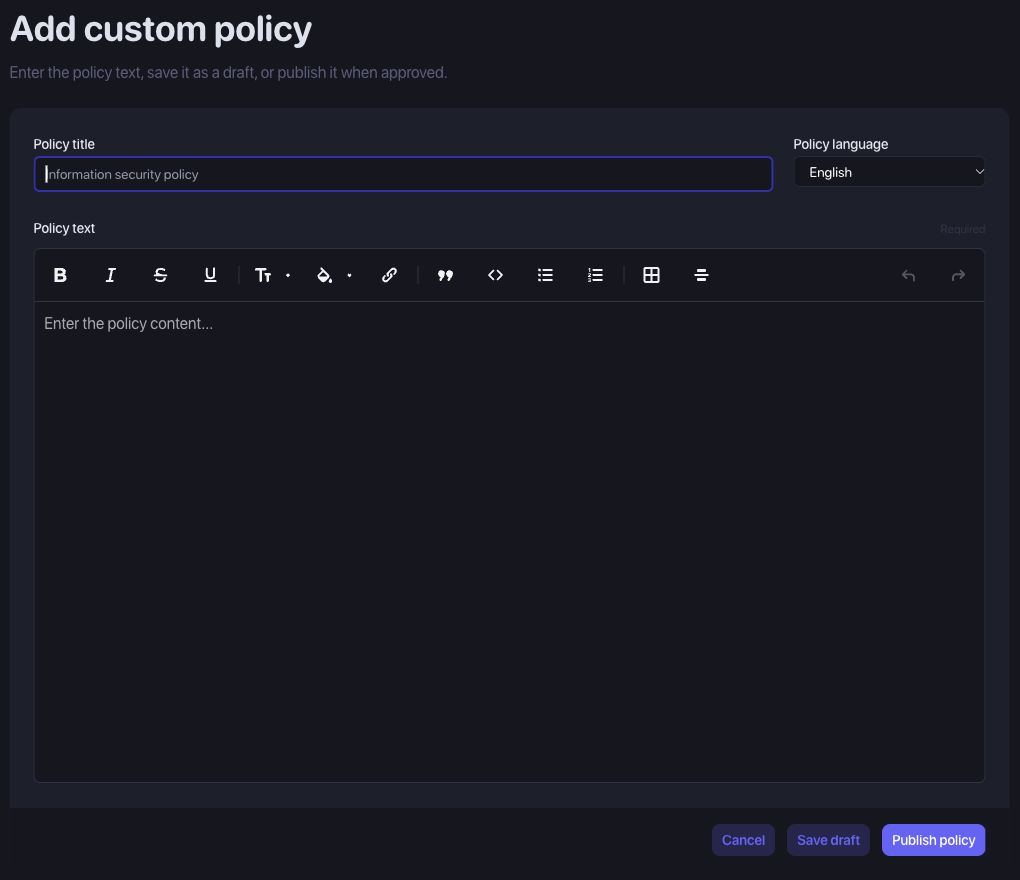
- Enter a Policy title and select Policy language. The current choices are English, English (UK), and English (US).
- Enter or paste the approved material into Policy text. Use headings and lists to keep rules, responsibilities, exceptions, and reporting instructions clear. Review formatting after pasting.
- Select Save draft if the policy still needs review.
Open the draft from Policies > Active and select Edit draft to continue editing it. Active is the list view; check the policy’s own Draft or Published label to confirm its publication status.
Publish the approved policy
Section titled “Publish the approved policy”Review the full policy text, title, and language with your policy owner. When approved, select Publish policy from the editor or the saved draft’s page. Confirm that the policy now shows Published.
Publishing the policy does not enroll learners or send them a training assignment.
Request a learning module
Section titled “Request a learning module”- Open the published policy.
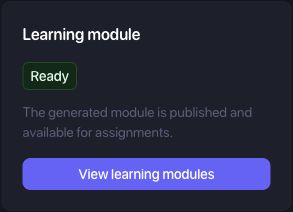
- In the Learning module panel, select Request learning module.
- Check the panel’s status. Prventi processes and reviews the requested training before it becomes available.
| Module status | What it means | What to do |
|---|---|---|
| Not requested | A learning module has not been requested. | Publish the policy if necessary, then select Request learning module. |
| Processing | The request is being processed and reviewed by Prventi. | Return later to check its status. |
| Ready | The generated module is published and available for assignments. | Select View learning modules, then create or update an assignment. |
Assign the policy training
Section titled “Assign the policy training”- Select View learning modules on the Ready policy to find its training in the content library.
- Review the available module before rollout. Raise any issue with the policy owner and Prventi support.
- Open Learning Assignments, create or edit an assignment, and add the policy module in Content > Add Content.
- Choose the learners or departments, review the assignment, and launch it when ready. Follow Create and manage learning assignments for the complete workflow.
- Check assignment completion and Training Evidence reports to follow progress.
Troubleshooting
Section titled “Troubleshooting”Policies is missing or access is denied
Section titled “Policies is missing or access is denied”Check the selected organization, your policy-management permissions, and whether custom learning modules are enabled. Viewing a policy and managing it can require different permissions.
The form will not save
Section titled “The form will not save”Check that Policy title, Policy language, and Policy text are filled in. Read the validation message, and make sure pasted text appears in the editor before trying again.
I cannot request a module
Section titled “I cannot request a module”Confirm that the policy is published and not archived. A request that is already Processing or Ready does not need another request. If the action is still unavailable, ask the organization owner to check your permissions.
The request is still Processing
Section titled “The request is still Processing”Processing includes review by Prventi. Reopen the policy to check its current status. If it appears stuck, send support the organization name, policy title, request time, and any visible error.
I cannot find the training in an assignment
Section titled “I cannot find the training in an assignment”Check that Learning module says Ready, select View learning modules, and search by the policy title. Ensure that the assignment belongs to the same organization. A published policy with no Ready module is not yet assignable training.
A policy has disappeared from the list
Section titled “A policy has disappeared from the list”Check Policies > Archived as well as the selected organization. An archived policy retains its learning module and audit history; ask support about the appropriate next step before replacing it.