

Create an organization
An organization is the workspace for your learners, verified domains, phishing campaigns, and training.
Before you start
Section titled “Before you start”- Sign in to your Prventi account.
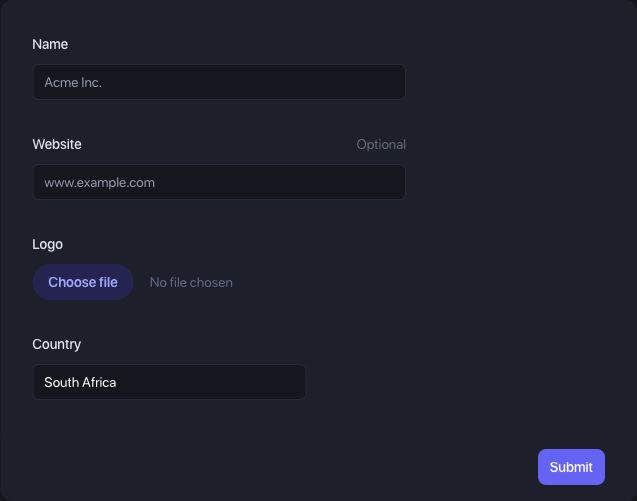
- Have your organization’s name and country ready. Its website and logo are optional on the creation form.
- If your team already has a workspace, ask an administrator for access to it before creating another one.
Create the workspace
Section titled “Create the workspace”- Open the account menu and choose Manage organizations.
- On Organizations, select Add organization.
- Under Organization profile, enter the Name your team should recognize.
- Optionally add your Website and upload a Logo.
- Check the Country selection and change it if needed.
- Select Submit. Prventi creates the organization and opens its dashboard.
Confirm the workspace was created
Section titled “Confirm the workspace was created”Your organization should be available in the organization switcher. Check the selected organization before adding learners or changing settings, especially if you manage more than one team.
You can review the profile later under Settings > General. Creating a workspace does not verify its email domains or add learners automatically.
Next: Add or import your learners, then verify the domains used by their work email addresses.
Troubleshooting
Section titled “Troubleshooting”I cannot find Manage organizations
Section titled “I cannot find Manage organizations”Open the account menu rather than the organization settings tabs. If you already have an organization selected, use its switcher to confirm where you are. If the creation action is unavailable to your account, contact your administrator or Prventi support.
The form stays open after I select Submit
Section titled “The form stays open after I select Submit”Check the form for validation messages, complete the required fields, and submit again. Check the organizations list before retrying if the request appeared to finish but the next page did not load.
I created the wrong organization or chose the wrong profile details
Section titled “I created the wrong organization or chose the wrong profile details”For profile changes, open the intended workspace and go to Settings > General. If you created a duplicate workspace, contact your administrator or support before adding learners to it.