

Configure manager escalations
Manager escalations notify a manager or designated contact when required training remains overdue. Configure the organization setting and each learner’s contact details before relying on automatic follow-up.
Before you start
Section titled “Before you start”- Select the correct organization and use an account with permission to manage organization settings and learners.
- Check that the learning assignment is active and that the learner has overdue, incomplete training.
- Confirm the appropriate manager or escalation mailbox with your organization. The recipient will receive information about overdue training.
Enable escalations for the organization
Section titled “Enable escalations for the organization”- Open Settings > General in the organization workspace.
- Find Escalation settings.
- Enter an optional Escalation email as the organization’s fallback recipient.
- Turn on Enable manager escalations.
- Save the organization settings.
The organization setting must be enabled for automatic escalations. A learner’s own switch does not override an organization-wide disabled setting.
Configure a learner’s recipient
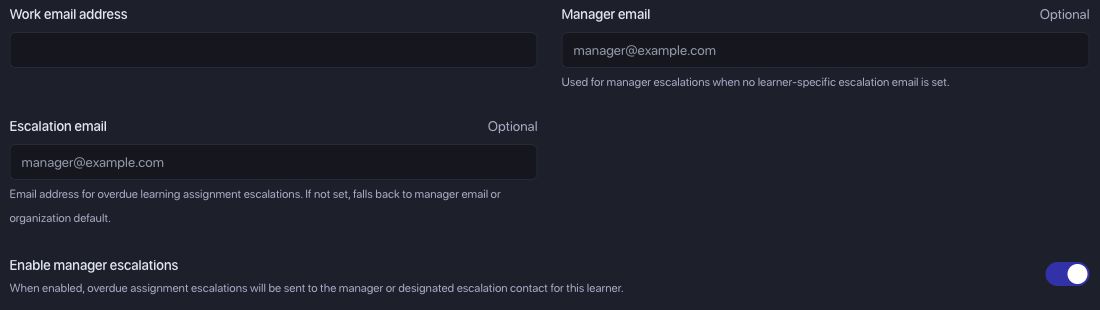
Section titled “Configure a learner’s recipient”- Open Learners, find the person, and select Edit.
- Check Manager email. This is used when a learner-specific escalation address is not set.
- If overdue notifications should go to a different contact, enter Escalation email.
- Check Enable manager escalations for this learner and save the changes.
The same fields are available when adding a new learner.
Prventi uses the first available recipient in this order:
- The learner’s Escalation email.
- Their manager contact, including Manager email where configured.
- The organization’s Escalation email fallback.
If none is available, the escalation cannot be delivered. Recheck these fields after a manager changes or when updating directory-provisioned learner details.
Understand reminder and escalation timing
Section titled “Understand reminder and escalation timing”Learner reminders and manager escalations are related but have separate schedules:
| Event | When it happens |
|---|---|
| Learner reminder | On the assignment’s configured weekly reminder day, while eligible work remains incomplete. |
| First automatic escalation | After overdue reminders reach the organization’s threshold. The default is three overdue reminders; your organization’s configuration may differ. |
| Automatic follow-up | Eligible overdue training is checked daily, with weekly manager follow-ups while it remains incomplete. |
| Manager digest | Automatic escalations are grouped into at most one digest per manager, organization, and calendar day. Later eligible items can wait for the next daily scan. |
The threshold counts overdue reminders, so it is not a fixed number of days after enrollment. Check the assignment’s Weekly reminder day when investigating the initial delay.
Completing the required training removes the need for further overdue follow-up. Archived assignments, offboarded learners, disabled escalation settings, and other eligibility changes can also stop delivery. Prventi checks eligibility again before sending queued notifications.
Check the history
Section titled “Check the history”Open Learners > the learner > Activity to review the Activity timeline. Escalation history distinguishes a trigger or queued attempt from a verified delivery, failure, cancellation, or older unverified history.
Treat a queued attempt as work awaiting delivery, rather than proof that the recipient received an email. A recorded delivery shows that the application completed the send; mailbox filtering can still affect whether it is visible in the inbox.
Use Reports when you need training evidence for a period. If you need an administrator-requested escalation or help interpreting an attempt, contact the organization owner or Prventi support.
Pause automatic manager follow-up
Section titled “Pause automatic manager follow-up”For one learner, open Learners > Edit, turn off Enable manager escalations, and save. For the whole organization, turn it off under Settings > General > Escalation settings and save.
These controls govern manager escalations. Review the assignment’s notification settings separately when changing learner enrollment emails or weekly reminders.
Troubleshooting
Section titled “Troubleshooting”No escalation has been sent
Section titled “No escalation has been sent”Check both enable switches, the recipient fallback order, the active assignment, the learner’s status, and whether training is actually overdue and incomplete. The initial reminder threshold may not yet have been reached. If your organization needs a different threshold, ask support to confirm its configuration.
The email went to the wrong person
Section titled “The email went to the wrong person”Check the learner’s Escalation email first: it takes priority over the manager and organization fallback. Correct the appropriate field and save. Review directory-provisioned manager details if the value changes again after synchronization.
A manager expected one email per learner
Section titled “A manager expected one email per learner”Automatic follow-ups are consolidated into a manager digest for that organization and day. Check the digest’s learner and assignment entries before assuming an escalation is missing.
The timeline shows a failure or only a queued attempt
Section titled “The timeline shows a failure or only a queued attempt”Check recipient spelling and mailbox filtering. Reload the timeline after processing. If the failure persists, provide support with the organization, learner reference, attempt time, and visible error; avoid repeatedly requesting sends while an attempt is already queued.
Escalations stopped after an assignment or learner changed
Section titled “Escalations stopped after an assignment or learner changed”Check for completion, assignment archiving, learner deactivation or removal, and either enable switch being turned off. These changes affect eligibility even if a notification was queued earlier.
Need help? Contact Prventi support.