

Add learners
Add the people who will take part in your organization’s training and phishing simulations. Choose manual entry for a small number of learners, CSV for a batch, or directory sync for ongoing provisioning.
Before you start
Section titled “Before you start”- Select the correct organization in Prventi.
- Use an organization owner account or an account with permission to manage learners.
- Prepare work email addresses, first names, and last names. Check your organization’s seat capacity before adding a large group.
Add one learner
Section titled “Add one learner”- Open Learners in the organization sidebar.
- Select Add Learner.
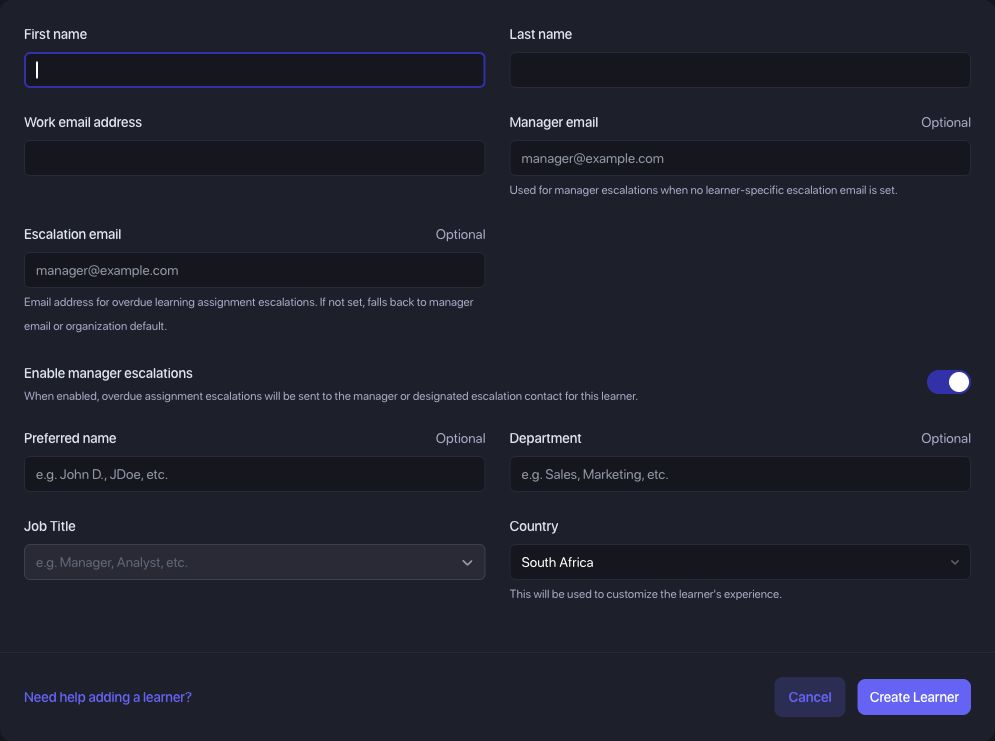
- Enter First name, Last name, and Work email address.
- Complete Job Title and check Country on the form. Add optional details such as department or preferred name if useful.
- If you use manager escalations, check the manager email, escalation email, and Enable manager escalations setting before saving.
- Select Create Learner.
Import learners from a CSV
Section titled “Import learners from a CSV”- On Learners, select Import Learners.
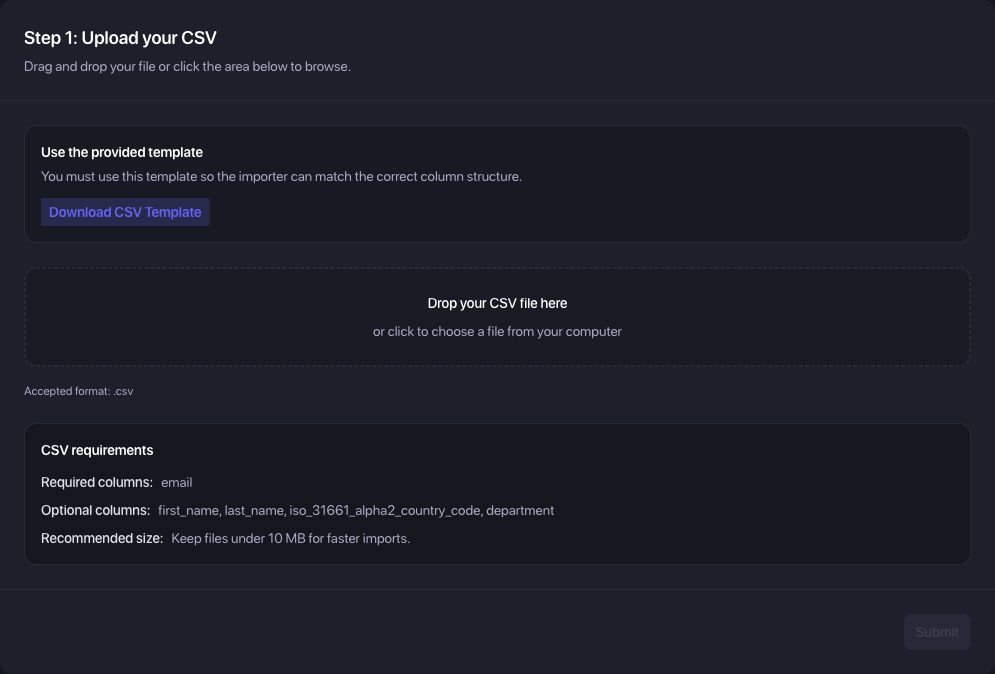
- Select Download CSV Template and extract the CSV from the downloaded ZIP.
- Keep the template’s column headings. Fill in each learner’s
email,first_name, andlast_name. The template also supportsiso_31661_alpha2_country_codeanddepartment. - Save the file as a UTF-8
.csv, no larger than 10 MB. Upload the CSV itself, not the ZIP or an Excel workbook. - Drop the CSV into the upload area or select it from your computer, then select Submit.
- On the import results page, wait for processing to finish. Review the Created, Updated, and Failed counts before continuing.
Keep learners in sync with your directory
Section titled “Keep learners in sync with your directory”For ongoing provisioning, open Settings > Team Provisioning and use the guide for your provider:
Check the provider guide for synchronization, scope, and deactivation behavior before connecting a directory.
Confirm learners are ready
Section titled “Confirm learners are ready”Return to Learners and search for the work email address. Check Pending or All if the learner is not on the Active tab.
Adding a learner does not, by itself, mean they have received an invitation or signed in. Pending, Invited, and Active are separate states. Coordinate invitations with your team’s rollout and introduce Prventi to learners.
Next: Verify the email domains used by your learners.
Troubleshooting
Section titled “Troubleshooting”Add Learner or Import Learners is missing
Section titled “Add Learner or Import Learners is missing”Confirm the selected organization and ask its owner to check your learner-management permissions. An account that can view learners may not be allowed to add them.
The form reports that an email is already taken
Section titled “The form reports that an email is already taken”Search for that email under All before adding another record. Update the existing learner if appropriate; do not change someone’s work email simply to bypass the duplicate check.
The import rejects my file or some rows fail
Section titled “The import rejects my file or some rows fail”Use the provided template, save as UTF-8 CSV, and check the file size. Include first and last names as well as email addresses. On the results page, select Download Error Report to see the failed rows and their messages. Correct the affected rows and import the corrected CSV.
The import updated people I expected to create
Section titled “The import updated people I expected to create”The importer matches existing learners by email within the organization. Review the Updated count and check the affected learner profiles against your source file.
I have reached the seat limit
Section titled “I have reached the seat limit”Review the capacity message and ask your organization owner or partner to confirm the available seats and billing settings before adding more learners.
I need support with an import
Section titled “I need support with an import”Send support the import reference, error message, and whether the issue affects one row or the whole file. Avoid including your full employee CSV in an initial support request.