

Create and manage learning assignments
Use a learning assignment to give a group of learners specific modules to complete. The wizard has four steps: Details, Content, Learners, and Review.
Before you start
Section titled “Before you start”- Select the correct organization and use an account with permission to manage learning assignments.
- Complete your baseline phishing campaign. If the page says Not available yet, the baseline prerequisite has not been met.
- Add your learners. For department enrollment, check their department values first.
- For company policy training, wait until the policy’s learning module is Ready.
Set up the assignment
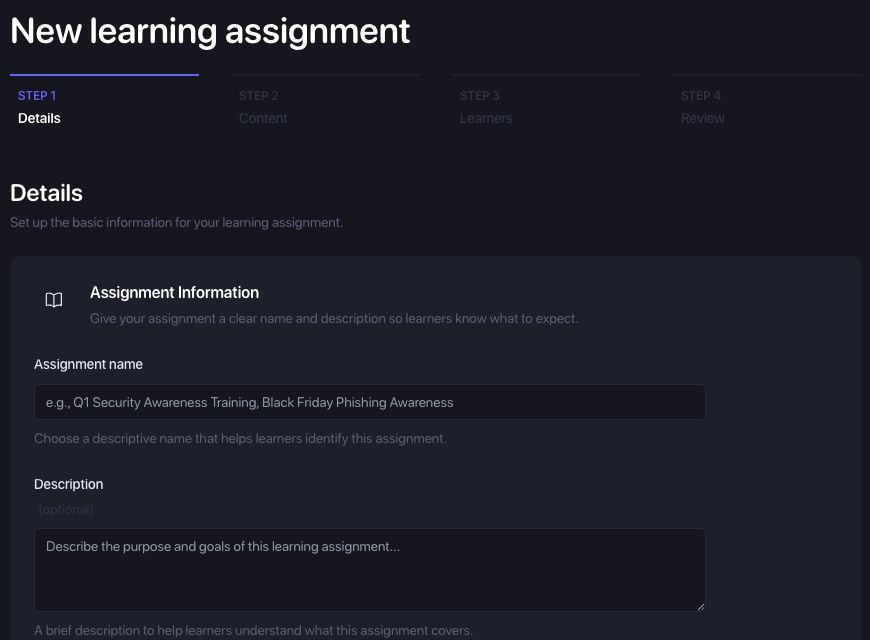
Section titled “Set up the assignment”- Open Learning Assignments in the organization sidebar and select Add Assignment.
- In Details, enter an Assignment name and an optional Description. Use a name learners will recognize, such as “New starter security training”.
- Check the Start date. This is when learners can begin the assignment.
- If it should leave the active view after a set date, enable Automatically archive this assignment and choose an Archive date. Leave it off for ongoing training.
- Under Audience Targeting, select any countries you want to include. Leave all countries unselected to include eligible learners across the organization.
- Check Send enrollment notifications and choose a Weekly reminder day, or No weekly reminders. Reminders go to learners who have not completed the assignment.
- Select Save and Continue.

Choose the content
Section titled “Choose the content”- In Content, select Add Content.
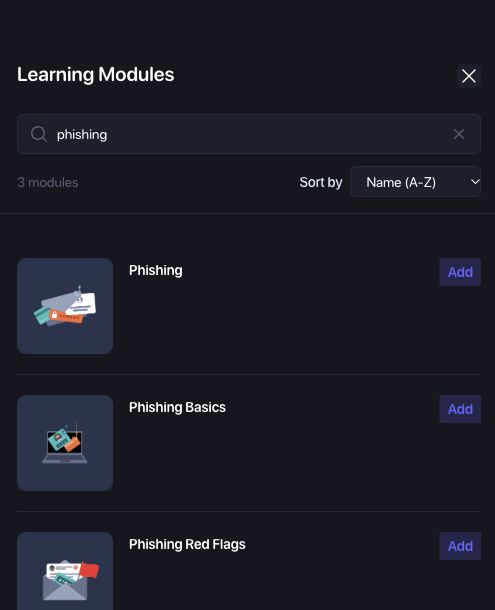
- Search the Learning Modules panel for the module you need. Use Sort by if helpful.
- Select Add beside each module. An added module has a Remove action.
- Close the panel, check the selected content, and select Save and Continue.
Content selections are saved as you add or remove modules. Review the selected list before moving on, especially when editing an active assignment.
Choose learners
Section titled “Choose learners”In Learners, choose how enrollment should work:
| Option | Use it when |
|---|---|
| Departments | Training should include current and future eligible learners in selected departments. Review the department selections and current learner count. |
| Individual learners | You want to search for and select specific people. Check the selected learners before continuing. |
Country targeting from Details still applies. Select Save and Continue after choosing the audience.
Review and launch
Section titled “Review and launch”- In Review, check the name, dates, country targeting, notification settings, content, and learner count. Use the section’s Edit link to correct it.
- Use Save as Draft if it is not ready to launch. Find it again on Learning Assignments > Drafts.
- When ready, select Launch Assignment, review the confirmation, and confirm Launch Assignment. At least one content item and one learner are required.
- Return to the assignment and confirm that its status is Active. Learners can begin from its start date, and enrollment emails follow the notification setting you chose.
Track, edit, or archive an assignment
Section titled “Track, edit, or archive an assignment”Open an assignment from Learning Assignments > Active to see Overall progress, Fully Completed, Average Score, and module completion. Where shown, Learning guide readership records guide views separately from quiz completion; finishing a quiz does not prove that its guide was opened.
Use Edit to return to the wizard. Check the final audience and notification settings when making changes to active training. Use Reports for reporting periods and exports, and manager escalations for overdue follow-up.
Select Archive and confirm when the assignment should leave active use. Archived assignments appear under Archived; restore an assignment before editing it again.
Troubleshooting
Section titled “Troubleshooting”The page says Not available yet
Section titled “The page says Not available yet”Complete the organization’s baseline campaign, then return to Learning Assignments. Switching organizations can change whether the prerequisite is met.
I cannot launch the draft
Section titled “I cannot launch the draft”Check that it contains content and learners. Review country targeting and department selections if the eligible audience is empty. Also check any validation message beside the assignment details.
A learner is missing
Section titled “A learner is missing”Confirm their organization, learner status, country, and department. Department enrollment uses the learner’s recorded department; individual selection requires you to select that person explicitly.
Learners have not received email
Section titled “Learners have not received email”Check Send enrollment notifications, the reminder day, the assignment’s status, and its start date. Confirm the learner’s work email and review your email delivery setup. Saving a draft does not launch training.
The completion figures differ from a report
Section titled “The completion figures differ from a report”Check the report’s period and metric definition. Current assignment progress, module completion, guide views, and activity within a reporting period measure different things. Compare the same assignment and audience before investigating a discrepancy.