

Microsoft Office 365 Allowlisting
Microsoft’s secure by default feature may affect the way your organization allowlists Prventi. Due to this change, you can allowlist Prventi using Microsoft’s advanced delivery policies feature instead.
In this article, you will learn how to allowlist Prventi with the advanced delivery policy feature. Read more about configuring the delivery of third-party phishing simulations to users.
How to Allowlist Prventi Using Advanced Delivery Policies
Section titled “How to Allowlist Prventi Using Advanced Delivery Policies”- Navigate to the Microsoft 365 Defender portal
- Expand Email and collaboration in the menu
- Select Policies and Rules
- Select Threat policies
- Select Advanced delivery
- Select the Phishing simulation tab at the top of the page
- Select Edit
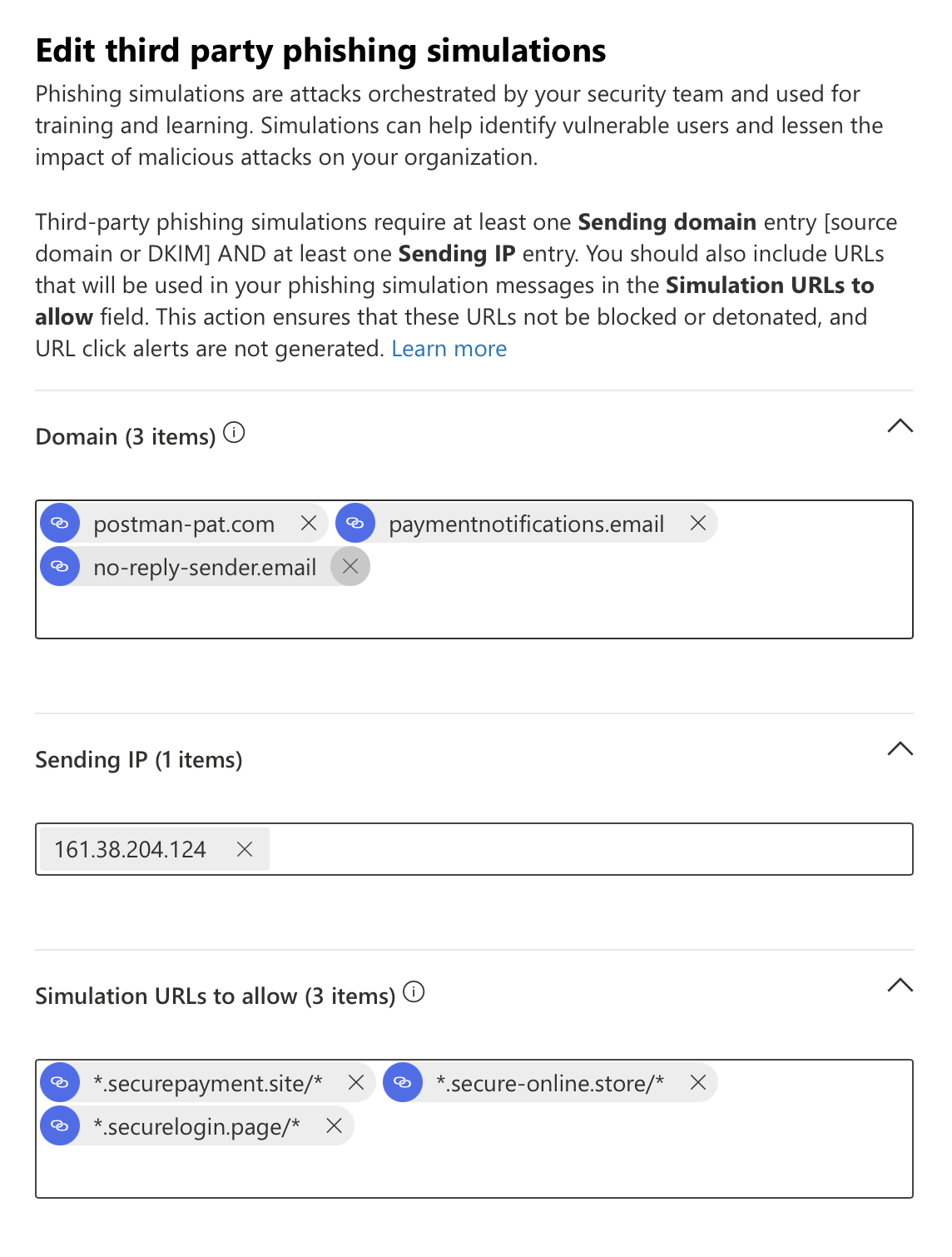
Add the following domains:
Section titled “Add the following domains:”postman-pat.com, paymentnotifications.email, no-reply-sender.email
| Prventi Phishing Email Domains | Description |
|---|---|
| postman-pat.com | Phishing simulation domain |
| paymentnotifications.email | Phishing simulation domain |
| no-reply-sender.email | Phishing simulation domain |
| sharepoitnonline.com | Phishing simulation domain |
Sending IP
Section titled “Sending IP”| IP Address | Description |
|---|---|
| 161.38.204.124 | Phishing simulation email server |
Simulation URLs to allow
Section titled “Simulation URLs to allow”| Phishing Website Domains | Description |
|---|---|
| *.securelogin.page/* | Phishing website domain |
| *.secure-online.store/* | Phishing website domain |
| *.securepayment.site/* | Phishing website domain |
| *.sharepoitnonline.com/* | Phishing website domain |
| *.compressed-download.zip/* | Phishing website domain |
| *.stable-release.zip/* | Phishing website domain |
| *.strictly-confidential.zip/* | Phishing website domain |
| *.final-1.zip/* | Phishing website domain |