

View, export, and schedule reports
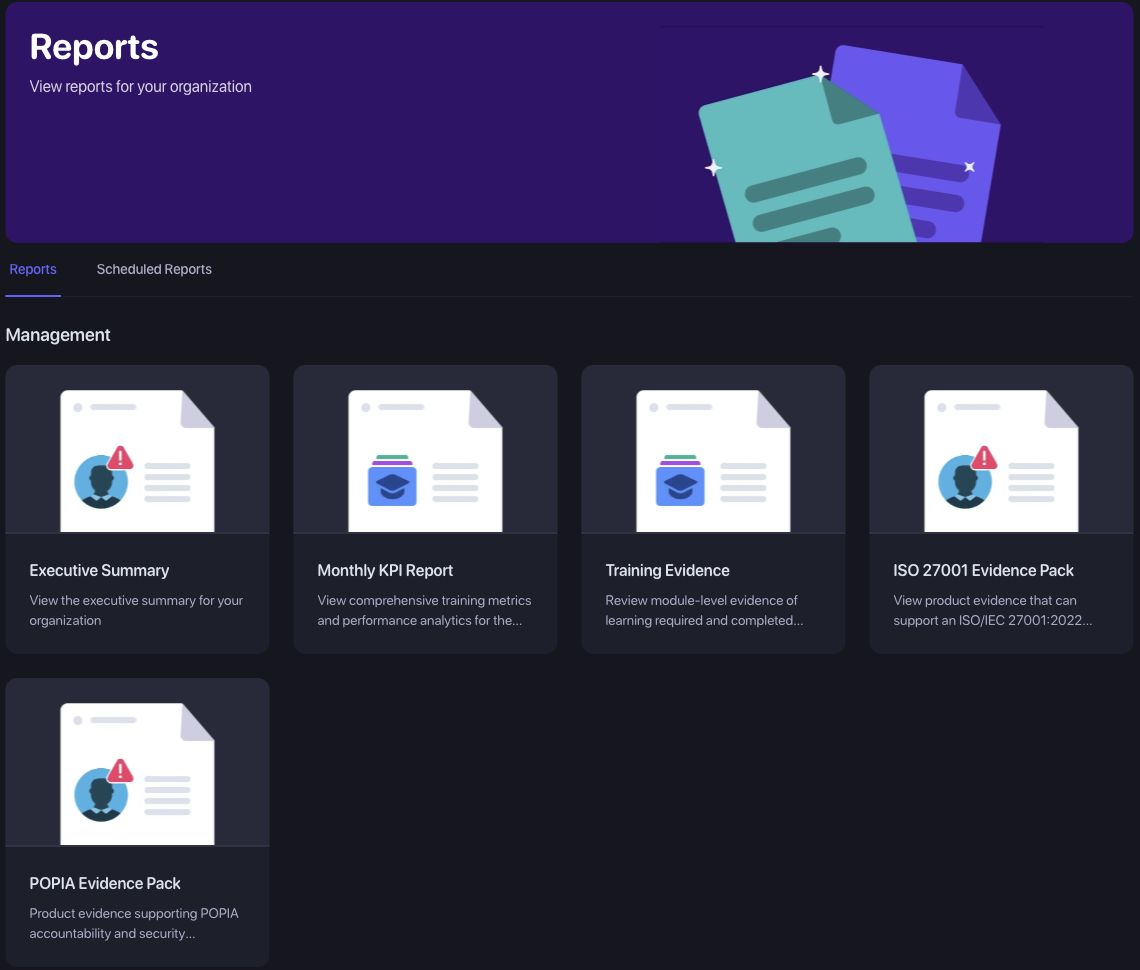
Open Reports in the organization sidebar to review training, phishing outcomes, and security evidence. Use Scheduled Reports for recurring delivery to named recipients.
Before you start
Section titled “Before you start”- Select the organization you want to report on.
- Use an account with report-viewing permission. Creating schedules and changing recipients require report-management permission.
- Some reports require a Pro subscription or an enabled feature. If you see an upgrade or access message, ask your organization owner to check availability.
Choose the right report
Section titled “Choose the right report”| Report | Use it to |
|---|---|
| Executive Summary | Review the organization’s overall security posture with management. |
| Monthly KPI Report | Review monthly training metrics, module completions, knowledge gaps, and engagement. |
| Training Evidence | Review learning requirements and completion evidence for a selected period, including Defence Boosts and scam awareness. |
| Learning Assignments | Review progress for particular learning assignments. |
| Phishing Campaigns | Examine campaign delivery, clicks, compromises, templates, runs, and learner outcomes. |
| Baseline Phishing Campaign | Review the initial baseline simulation results. |
| Exposed Data | Review exposed information associated with the organization. |
| New Joiner Training | Follow training progress for new joiners. |
| SCAM Insight Engagement | Check engagement with assigned SCAM Insights. |
| ISO 27001 Evidence Pack / POPIA Evidence Pack | Gather product evidence for your organization’s security and accountability reviews. |
| Competency Frameworks | Review training coverage for an available framework. |
Evidence packs support your review process. Read the scope and limitations within each report when deciding how to use it.
Review Training Evidence
Section titled “Review Training Evidence”- Open Reports > Training Evidence.
- Under Reporting period, choose Current month, Previous month, Last 90 days, or Year to date. Alternatively, enter Start date and End date, then select Apply period.
- Check the displayed period and time zone. Dates are inclusive and use the organization’s time zone; the period can span up to 366 days.
- Read the Executive Summary, then review the relevant sections: learning required during the period, Defence Boosts, Previously Incomplete Training, Foundational Learning, and Scam Awareness.
- Use column headings to sort the evidence tables when you need to inspect a particular measure.

Check whether a column measures work completed during the period or work still outstanding as at the end date. Module completion, guide readership, Defence Boost completion, and SCAM Insight engagement are separate measures. Monthly module completions also differ from a count of quiz sessions or attempts.
Export or print a report
Section titled “Export or print a report”After applying the intended filters, use the actions provided by that report:
- Download PDF for a shareable report document.
- Print where available for the browser’s print dialog.
- Download evidence CSV on Training Evidence for its detailed evidence export.
Keep the report title, organization, dates, and metric definitions with an export so readers can interpret it. Available export formats vary by report.
Review phishing results
Section titled “Review phishing results”- Open Reports > Phishing Campaigns and choose the relevant current or archived campaign.
- Select the reporting window offered by that report, such as the latest run, a rolling window, or a custom period.
- Review delivery, click, and compromise results alongside the run and template detail. Check the selected window before comparing campaigns or prior periods.
- Use the report’s download action if you need a copy. For your initial assessment, use Baseline Phishing Campaign.
Schedule recurring report emails
Section titled “Schedule recurring report emails”- Open Reports > Scheduled Reports and select Create Scheduled Report.
- Select one or more Standard Reports. Include any applicable Competency Framework Reports shown on the form.
- Choose a Delivery Schedule: weekly Monday, every other Monday, monthly at the beginning or end of the month, or quarterly at the beginning or end of the quarter.
- Select Create Schedule.
- On the saved Scheduled Report page, find Recipients and select Add.
- Enter the recipient’s Email and select Create Report delivery recipient. Repeat for each intended recipient.
- Return to Scheduled Reports and check the report types, Frequency, Recipients, and Next Delivery.
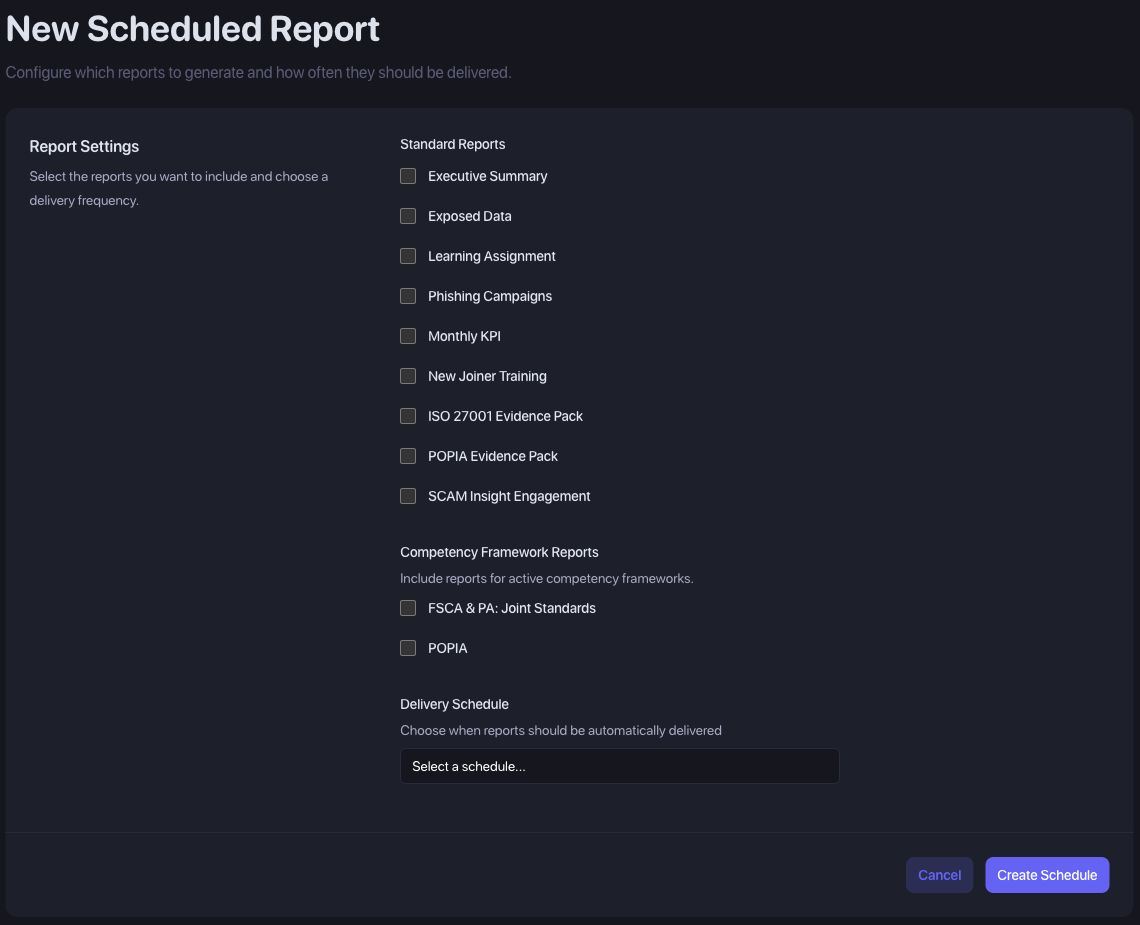
Only report types listed in the scheduling form can be scheduled. Training Evidence currently has manual PDF/CSV exports and is not a report type on that form.
Select Manage to change a saved schedule and Save Changes after editing it. Review its recipient list separately. Deliver Now queues an immediate delivery to the configured recipients; use it when you intend to send them a report.
Troubleshooting
Section titled “Troubleshooting”A report or scheduling action is missing
Section titled “A report or scheduling action is missing”Check the organization, subscription, and your report permissions. Having permission to view reports does not necessarily allow you to change schedules or recipients.
A report is empty, pending, or has unexpected totals
Section titled “A report is empty, pending, or has unexpected totals”Check its period and prerequisites. A baseline report needs baseline campaign results; training reports need relevant assignments and activity. Allow background processing to finish, then reload. Compare the same audience, period, and measure when reconciling totals.
My export contains the wrong period
Section titled “My export contains the wrong period”Apply the dates in the report first, confirm that the page shows the intended period, and then download again. An older downloaded file will not update when you change filters.
A scheduled report has not arrived
Section titled “A scheduled report has not arrived”Check Recipients and Next Delivery under Scheduled Reports. A schedule with zero recipients has nobody to receive it. Confirm the email spelling and check spam or quarantine. If delivery still fails, provide support with the schedule reference, expected delivery time, and affected report type.
I need a report that is not in the scheduling list
Section titled “I need a report that is not in the scheduling list”Use its available manual export. Contact Prventi support about recurring delivery requirements rather than assuming another scheduled report contains the same evidence.