

Log in or create an account
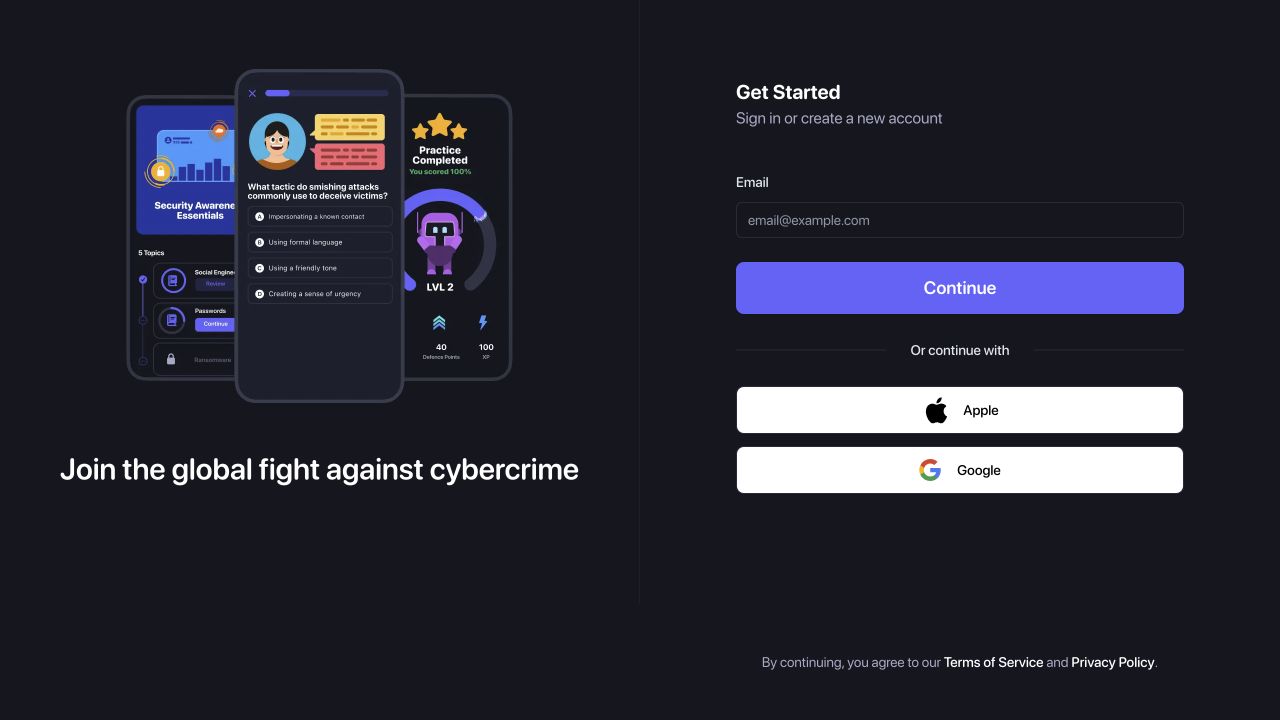
The same Prventi sign-in screen lets you access an existing account or create a new one.
Before you start
Section titled “Before you start”- Use an email address whose inbox you can open.
- If your organization has invited you, use the address that received the invitation. A different address may not be linked to your learner record.
- If you already use Apple or Google to sign in, use the same method and identity to return to that account.
Sign in with email
Section titled “Sign in with email”- Open app.prventi.com. If you already have an active session, Prventi opens your account automatically.
- On Get Started, enter your email address and select Continue.
- When Check your inbox appears, open the sign-in email in that inbox. Check spam or junk if it is missing.
- Follow the sign-in link in the email and complete any account or profile prompts shown in Prventi.
Sign in with Apple or Google
Section titled “Sign in with Apple or Google”Choose Apple or Google below Or continue with, then follow that provider’s prompts. Select the identity associated with your Prventi account or invitation.
Signing in with Google is separate from Google Workspace directory sync, which an organization administrator configures for learner provisioning.
Confirm you are in the right place
Section titled “Confirm you are in the right place”After sign-in, you should see your Prventi account or the dashboard available to your role. Learners use the learning dashboard; organization administrators can open their organization from the account menu.
If you are setting up a new team, continue to Create an organization.
Troubleshooting
Section titled “Troubleshooting”The sign-in email has not arrived
Section titled “The sign-in email has not arrived”Check the address you entered, then check junk, spam, and your organization’s mail quarantine. On Check your inbox, wait for the resend countdown to finish before requesting another email. If company filtering is blocking the message, ask your email administrator to investigate.
The link has expired or was already used
Section titled “The link has expired or was already used”Return to the sign-in screen and request a new link. Use the most recent email rather than repeatedly opening an older message.
I signed in but cannot see my organization or assigned training
Section titled “I signed in but cannot see my organization or assigned training”Check that you used the same email address or provider identity as your invitation. Ask your organization administrator to confirm which address is on your learner or admin record before creating another account.
I am still unable to sign in
Section titled “I am still unable to sign in”Contact Prventi support with the sign-in method, approximate time, and error message. Do not send a sign-in link, password, or verification code.